
Snippets
Type a trigger, get a replacement — with the caret checked before anything is deleted.
Type vn, get Vietnam. Each snippet decides for itself when it fires and
where it works, and a replacement can hold dynamic variables
so part of it is fresh every time. A trigger can also be a pattern and a
replacement a script, for the expansions that are a function of what you
typed: ;task123 → TASK-123. See Patterns and scripts.
Needs the Accessibility permission — it watches what you type and replaces it. The master switch is at the top of the Snippets pane, and five tabs sit under it: the list, the Playground, the History, Excluded apps and Settings.
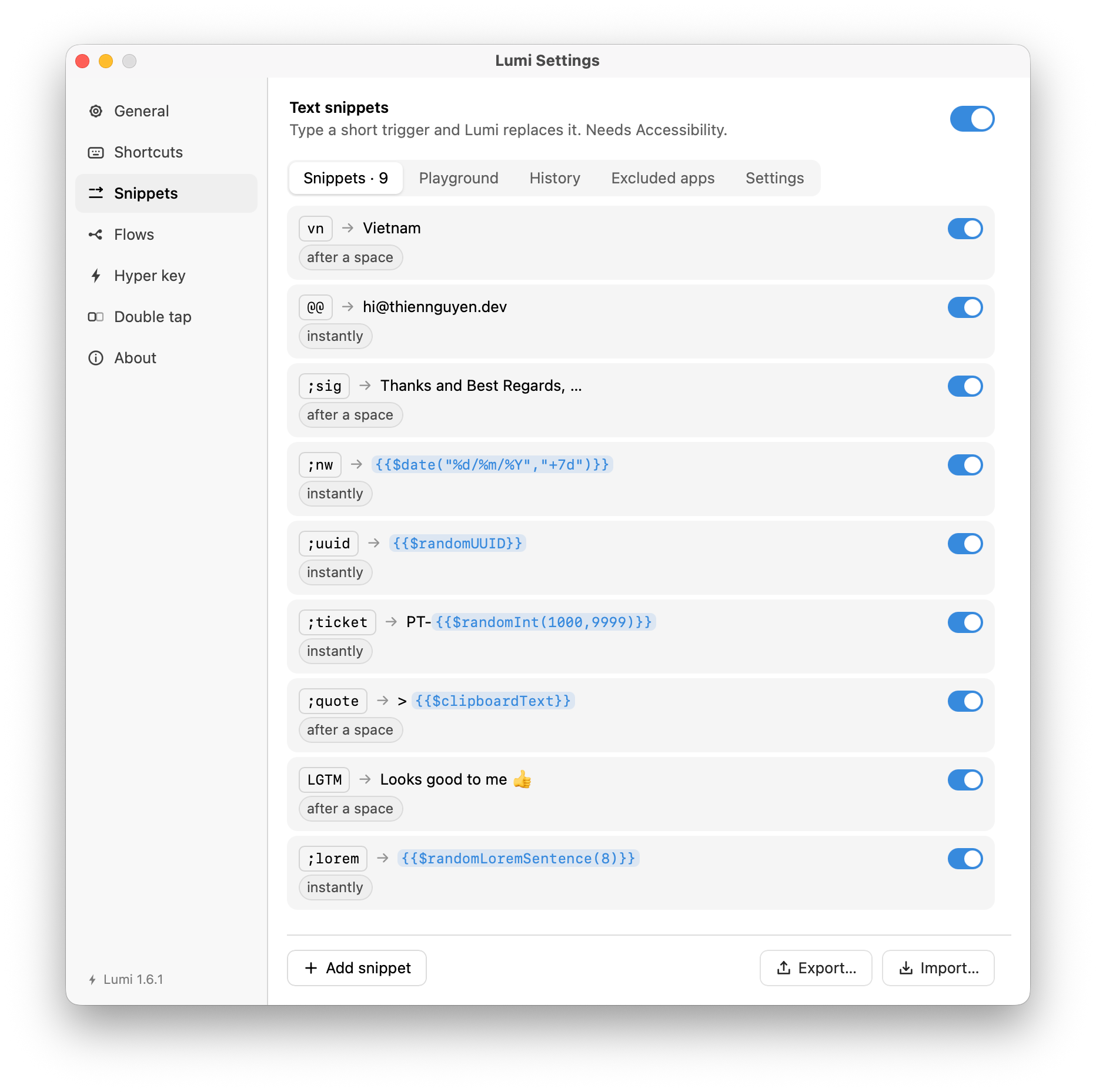
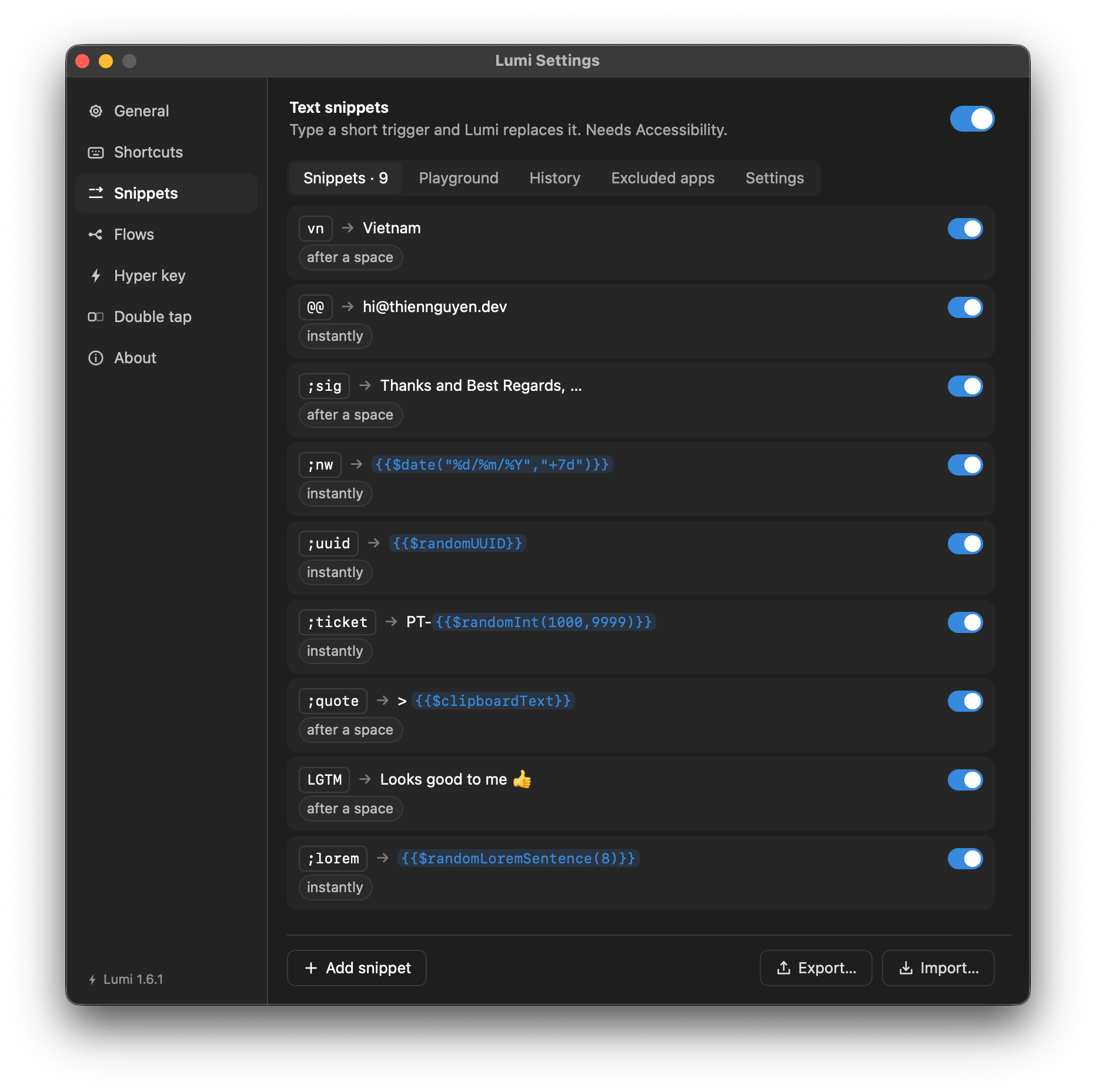
A snippet
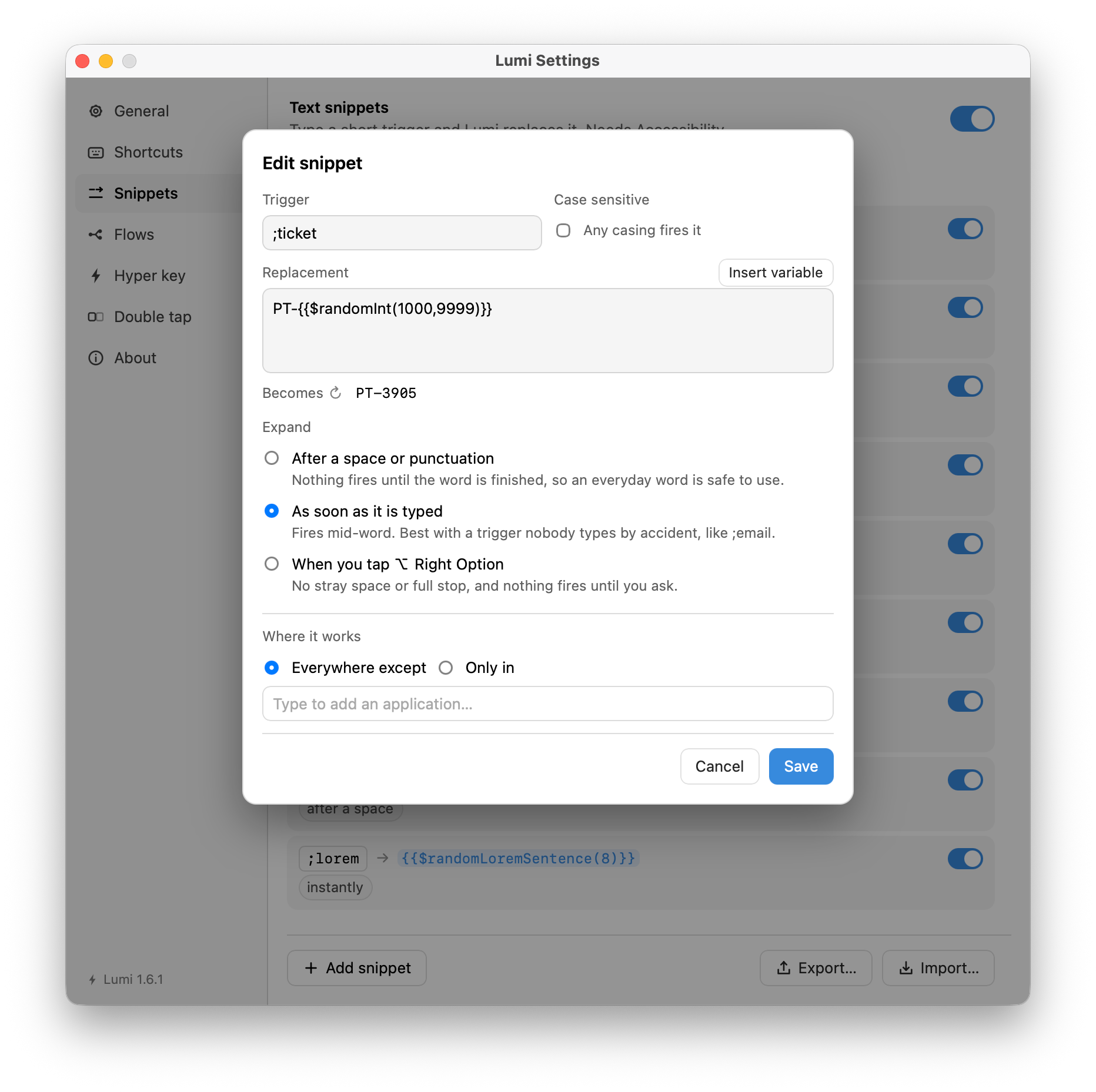
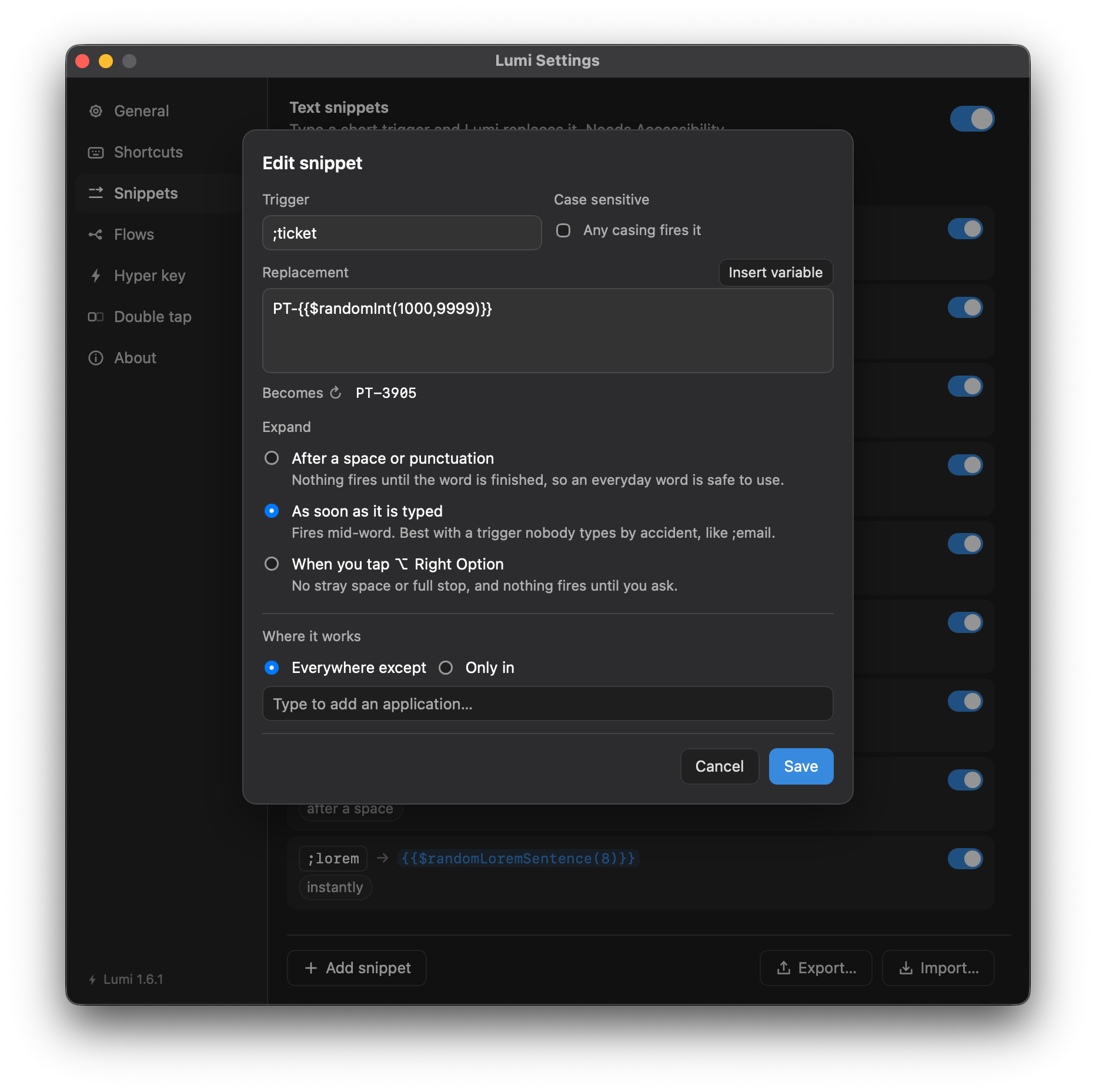
The line at the top of the sheet reads the snippet back as you write it —
vn → Vietnam, and under it what to press — so you can see what it does
without saving it. When the replacement holds a variable it shows a sample, and
the ↻ beside it rolls a fresh one.
| Field | Notes |
|---|---|
| Trigger | The text you type. No spaces — a trigger with a space in it can never be typed as one word, so it would never fire. Two switches sit inside the field. Aa is the case: off, VN fires vn; on, only the spelling you wrote does — for a pattern too. .* makes it a regular expression instead; see A trigger that is a pattern. |
| Replacement | The text it becomes. Insert variable offers the variables. The Text / Script switch makes it JavaScript that returns the text; see A replacement that is a script. |
| Expand | When it fires: five tiles, below. |
| Where it works | Per-snippet scope, below. |
Save says what is missing when you press it — a trigger, a replacement — under the field it is about, and puts the caret there. ⌘↩ saves too.
When it fires
The Expand tiles in the sheet. Each tile carries the mark the suggestion panel draws for that mode and a short word; the line under the tiles names the one you picked in full:
| Choice (tile) | Behaviour |
|---|---|
| After a space or punctuation (After space) | Nothing fires until the word is finished, so an everyday word is safe to use as a trigger. |
| As soon as it is typed (Instantly) | Fires mid-word. Best with a trigger nobody types by accident, like ;email. |
| When you tap ⌥ Right Option (Expand key) | No stray space or full stop, and nothing fires until you ask. The line under the tiles names whichever key is picked under Snippets → Settings → Expand key, and the tile is disabled until one is. |
| When you press ⇥ Tab (Tab) | Same again — no stray character, nothing fires until you ask — and no key to pick, because every keyboard has a Tab. The catch is that Tab is a key applications use themselves: an editor accepts its own completion on it, a terminal completes a path, a form moves to the next field. While a trigger is waiting, Lumi takes it. So scope this one under Where it works, or keep those applications out under Snippets → Excluded apps. A Tab that completes nothing goes through untouched. |
| Never from typing (Never typed) | Typing the trigger never expands it, whatever key comes next. Pick it from the suggestion panel instead. Extensions allowed to read your snippets still find and expand it like any other, so a snippet kept only for them belongs here too. With suggestions switched off, or Hide “Never from typing” on, under Snippets → Settings, an extension is the only way it expands. |
Where it works
A snippet with no applications named works everywhere. Name one and an Only in / Except in pill appears beside the label — the first application you name lands on Only in, and one click is the other way round. Take every application off again — each ✕, or ⌫ in the empty field — and the snippet goes back to working everywhere.
The same control sits under Shortcuts, and answers the same question the same way — see Scope.
On top of that, the Excluded apps tab holds a pane-wide list — applications no snippet works in, whatever each one's own scope says. Editors and terminals are the usual entries: a trigger that is also a command is worse than no expansion at all.
Patterns and scripts
A snippet is normally a constant: vn becomes Vietnam, every time. Two
switches in the sheet let it be a function of what you typed instead, and they
are independent — either without the other, or both.
A trigger that is a pattern
Set Trigger to Pattern and the field is a regular expression, matched against the word in front of the caret:
| Trigger | Expand | You type | You get |
|---|---|---|---|
;task(\d+) | After a space | ;task123 | TASK-123 |
;bug(\d+); | As soon as it is typed | ;bug42; | BUG-42 |
;(\w+?)(\d+)(\w+); | As soon as it is typed | ;task123done; | TASK-123-DONE |
The ? beside the label holds the short vocabulary — \d, \w, +, {2,4},
( ) — and two worked patterns.
The dialect is Rust's regex, which is not JavaScript's: there is no
lookaround and there are no backreferences. That is deliberate — a pattern is
matched on every keystroke, in every application, and regex cannot backtrack,
so there is no pattern anybody can write that hangs the keyboard. Anything that
needs the harder constructs belongs in the script, where JavaScript's own
RegExp is available and a time limit can stop it.
It is anchored at both ends for you, so ;task\d+ means the whole word and not
part of one — write no ^ or $. A pattern that is not valid on its own is
refused at Save rather than patched up. A space in a pattern is allowed, unlike
in a text trigger: it is written there on purpose.
Which one fires when several could: the longest match wins; a text trigger beats a pattern over the same span; and between two patterns, the one higher in the list.
A pattern with an open end should not fire immediately. ;task(\d+) set to
fire as soon as it is typed fires at ;task1, because the word is matched after
every keystroke and the first match wins. Either end the pattern with something
you type — ;task(\d+); — or expand on a space, ⇥ or the expand key. The sheet
says so when you choose that combination.
A replacement that is a script
Set Replacement to Script and the field is JavaScript that returns the text to insert:
return `TASK-${groups[0]}`;Four things are there to read:
| Name | Holds |
|---|---|
text | The whole span the trigger matched. For a text trigger, the trigger. |
groups | The capture groups, in order. A group that did not take part is "", never missing. |
named | Named groups, written (?<ticket>\d+) in the pattern. |
app | The bundle id of the application in front, or null. |
lumi. has the snippet variables — the same names
Insert variable offers in a text replacement, as functions:
lumi.date("%d.%m.%Y"), lumi.uuid(), lumi.clipboardText(),
lumi.frontApp(). They take whole numbers and strings and nothing else, because
that is what the {{$…}} grammar takes; a float comes back as an error rather
than being quietly rounded. lumi.selectedText is not there, for the reason
under Importing a pack.
lumi.frontApp() is the name of the app the expansion is going into, and it is
the one lumi. name that answers about the machine without costing anything:
macOS tells Lumi on every switch, so there is no permission behind it and
nothing to wait for. app in the table above is the same application by its
bundle id.
Return a string, a number or a boolean. An array or an object is refused, and so is returning nothing — there is no single obvious way to spell those as text, and guessing one would put text in your document that the script did not ask for.
What a script cannot do. There is no require, no process, no fetch, no
file system and no way to reach another application. The script runs in a fresh
JavaScript context that never had them, and the only things added back are the
four names above and lumi.. A flow is where an automation
that reaches outward belongs, and it has an import review that lists exactly
that.
It is bounded as well as fenced: a quarter of a second, sixteen megabytes, and sixty-four kilobytes of returned text. A script that runs long, throws, or returns the wrong kind of thing expands nothing, says why in an alert, and hands the keystroke back — which matters most for When you press ⇥ Tab, where you pressed Tab and are entitled to a Tab.
Trying one
A pattern trigger has a Try field under it. Type what you would type, and
the line under it says whether the pattern takes it, with one chip for each
group it caught — numbered the way a script reads them, groups[0] first, and
marked empty where a group caught nothing. The line at the top of the sheet
shows what the replacement makes of it. The match runs through the same code the
keystroke watcher uses, so the sheet cannot bless a pattern that would then be
refused.
In the suggestion panel
A pattern row is drawn as its fixed beginning and an ellipsis — ;task… — never
the regex itself. It is offered while you are still inside that beginning and
once you have typed past it, which is the opposite of a text trigger: passing a
text trigger means it is not that trigger, while passing a pattern's beginning
is how it starts being certain. The sheet names the beginning under the field —
Suggested after you type ;task. A pattern with no fixed beginning at all can
only be offered once it matches outright, and the sheet says that too.
Taking a row expands the whole trigger, not the part you typed — that is the
point of the panel, and a script sees the whole of it: pick
nguyenngocphuocthien after typing nguyen and the script's text is the
trigger, not nguyen. Only what the document actually holds is deleted.
A pattern row is the exception, and has to be: there is no rest of a regex for Lumi to supply on your behalf. Its row is a reminder, and the accepting key leaves it alone until the pattern matches what you have typed — at which point taking it is ordinary. Before then the key means what it means without a panel.
A script row has no preview until you select it with ↑ or ↓. A script has to be run to be previewed, so it is run then — once, for the row you are looking at — rather than for every row on every keystroke. It shows nothing if the trigger does not match what you have typed yet, because a preview built from groups the press would not produce is worse than none, and nothing if the script read your clipboard.
Suggestions
A snippet is invisible until it fires. To use one you have to remember its trigger and which key it waits for, and both of those are written down only in the Snippets pane.
So Lumi can draw a small panel beside the caret while you type, in whatever application you are typing in, listing the snippets whose triggers begin the same way:
hn | ⇥ | Hà Nội |
hnx | ␣ | Hà Nội, Việt Nam |
hnow | ⌥ᴿ | {{$time}} |
hnote | — | A note to self |
hnp | (no keyboard) | Hà Nội, phố cổ |
The middle column is the key that expands that row — a space bar for a space or
punctuation, a Tab arrow for Tab, ⌥ᴿ for the expand key, — for nothing at
all, where the snippet fires on its own last character, and a struck-through
keyboard for one that typing never fires and this panel is the way to. A key rather than the
phrase used in the pane, because the panel is drawn over what you are typing and
is only as wide as its widest row.
↑ and ↓ choose, ⇥ expands the chosen one, and ⎋ puts the panel away. Choosing a row whose replacement is a script is also what runs it, once, to fill in that row's preview — see Patterns and scripts. Everything else goes on typing and narrows the list; a letter that leaves nothing takes the panel with it.
It also goes away on its own. Clicking anywhere ends it — a click moves the caret, and the panel is about the word in front of one — as does switching application, and so does fifteen seconds in which you press nothing at all.
That last one counts from your last keystroke, not from when the panel appeared, and every letter, every backspace and every ↑↓ starts it over. So a long trigger typed slowly never runs it out; what it clears is a panel you walked away from.
⏎ instead of ⇥, if you would rather — under Snippets → Settings → Key that accepts. Which of the two is free depends on what you type in: ⇥ moves between fields in a form and indents in an editor, ⏎ sends in a chat window. Whichever you do not pick goes back to meaning what it always did, so choosing ⏎ hands ⇥ back to your On ⇥ snippets.
⇥ is the default and is the safer pick. ⏎ ends a paragraph everywhere prose is written, and it is the key that commits a Vietnamese or Japanese composition — which Lumi cannot tell apart from an ordinary press, because the panel is steered from the keyboard before the input method sees the key. Raising Show after narrows the window in which that can happen.
Whichever you pick is named in the panel's own footer, on the right: ⇥ to insert. That is not the same fact as the key on a row — a row's key fires that
snippet once its trigger is typed out in full, while the footer says what to
press against the panel in front of you, so a row reading ␣ under a footer
reading ⇥ to insert is two true things at once.
The chosen key expands a trigger you have not finished typing — that is the
point of the panel. Pick hnx after typing hn and the two letters you typed are what gets
replaced. Nothing is deleted on trust here either: the text in front of the
caret is read back and checked first, exactly as it is for an ordinary
expansion.
The preview is the replacement as written, variables
and all. A rendered preview would show a value the press then contradicts —
{{$uuid}} is a different UUID a moment later. A script row is the one
exception, since a script has nothing to show until it is run: it is previewed
when you choose it with ↑↓, and blank until then.
The keys are only borrowed while the panel is up, and only the ones the panel uses. With no panel on screen, ⇥ and ⏎ mean whatever they meant before and ↑↓⎋ go straight to the application — and the one of ⇥/⏎ you did not choose is never taken, panel or no panel. ⇧↓, ⌥↓ and ⌘↓ are never taken at all: selecting and navigating are editing, not choosing from a menu. And the panel cannot appear over a password field — macOS switches on secure input there, which stops every keystroke reaching Lumi at all.
Where it appears depends on what the application will say about itself. One that answers for a range of its text gets the panel beside the caret; one that only exposes the field gets it under the field. An application that exposes neither gets no panel at all, rather than one drawn somewhere it does not belong.
And the field has to actually be one. Typing into a window with nothing focused — a Finder list, the System Settings sidebar, a dialog with only buttons on it — draws no panel, even though something technically has focus there. macOS beeps at those keystrokes because they are going nowhere, and a panel offering to insert into nothing would be disagreeing with that beep.
Electron applications — Claude Desktop, VS Code, Slack, Discord — often will not tell macOS which element has focus, while answering that same question put to the application itself. So Lumi asks both ways. One that still answers nothing after both is asked to build an accessibility tree, which costs it a little memory and lasts until you quit it.
The same reading is what lets a snippet expanding there be checked before anything is deleted, instead of falling back to counting backspaces.
Chrome and Edge are the case that needs asking for. A Chromium browser builds no accessibility tree for a page's own fields until something asks, so typing a trigger into a search box on a web page gets no panel — while the address bar, which is part of the browser rather than the page, works. Safari answers everywhere.
General → Advanced → Ask Chromium browsers for a page's text turns it on — the same switch lets the text you select in a page reach Lumi's extensions. It takes a few seconds rather than a keystroke, and the panel then sits under the field rather than at the caret, because Chromium will not say where inside a field its caret is drawn.
It is off by default, because what it writes is the flag a screen reader writes. The browser builds the tree for every tab, which is real work on a large page. Lumi never switches it back off — that flag is the one VoiceOver uses and nothing records who set it, so clearing it could take accessibility away from somebody using one. Quitting the browser ends it.
It does not appear in Lumi's own windows either, the Playground included, so try a snippet in another application to see it.
Under Snippets → Settings: a switch for the panel, how much of a word has to be typed before it appears (two characters by default), whether each row shows its expand key and its preview, and Hide “Never from typing”, which leaves those snippets out of the panel when you keep them only for extensions (off by default). It follows Lumi's light and dark setting, and it is on by default — with nothing to show until snippets themselves are switched on.
Vietnamese and other input methods
A Vietnamese input method rewrites keystrokes
after Lumi's event tap has seen them, inside the target application: telex
turns the two keys dd into the one character đ. So what Lumi watched being
typed is not always what the document holds.
Lumi therefore never deletes on trust. Before replacing anything, it reads the text actually in front of the caret and compares it to the trigger:
| The application | What happens |
|---|---|
| exposes its text, and it matches | replaced exactly, through Accessibility |
| exposes its text, and it does not match | nothing happens, silently — the snippet is skipped |
| exposes no text at all | falls back to backspaces |
A missed expansion is a nuisance; eating the wrong characters is not, so the middle row is deliberate.
Playground
Snippets → Playground is a box to try triggers in. Nothing is simulated: the event tap watches every keystroke on the machine, this window included, so a trigger typed there is replaced there by the same code that would replace it anywhere else. Snippets have to be switched on, and a snippet pinned to other applications sits it out.
Nothing typed there reaches History.
History
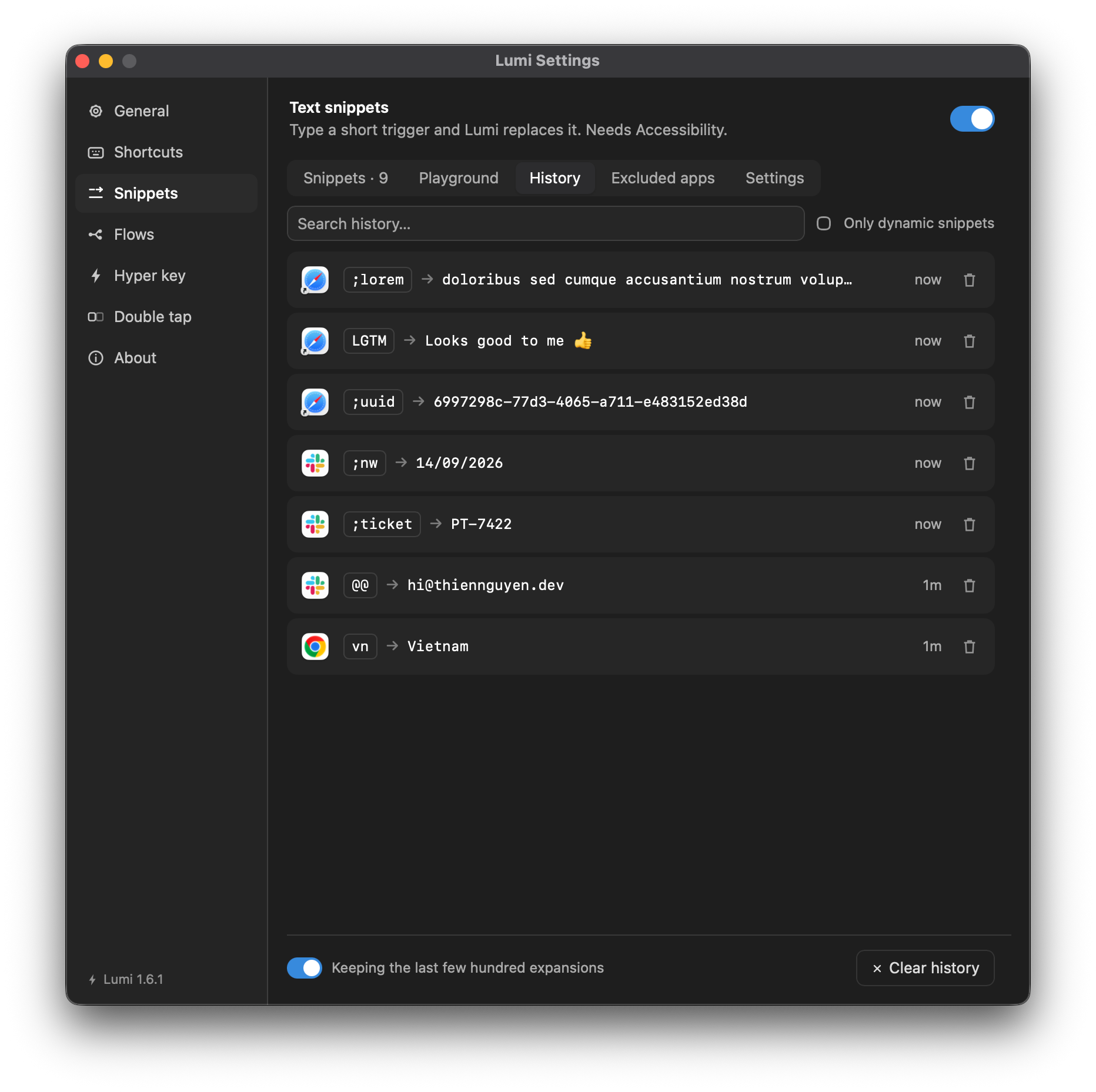
A variable's output is gone the moment it leaves — the snippet only ever holds the template. So Lumi keeps the last 200 expansions under Snippets → History: the generated text, the trigger as it was typed, the application it went into, and when. Clicking a row copies it; the tray's Recent submenu carries the newest ten.
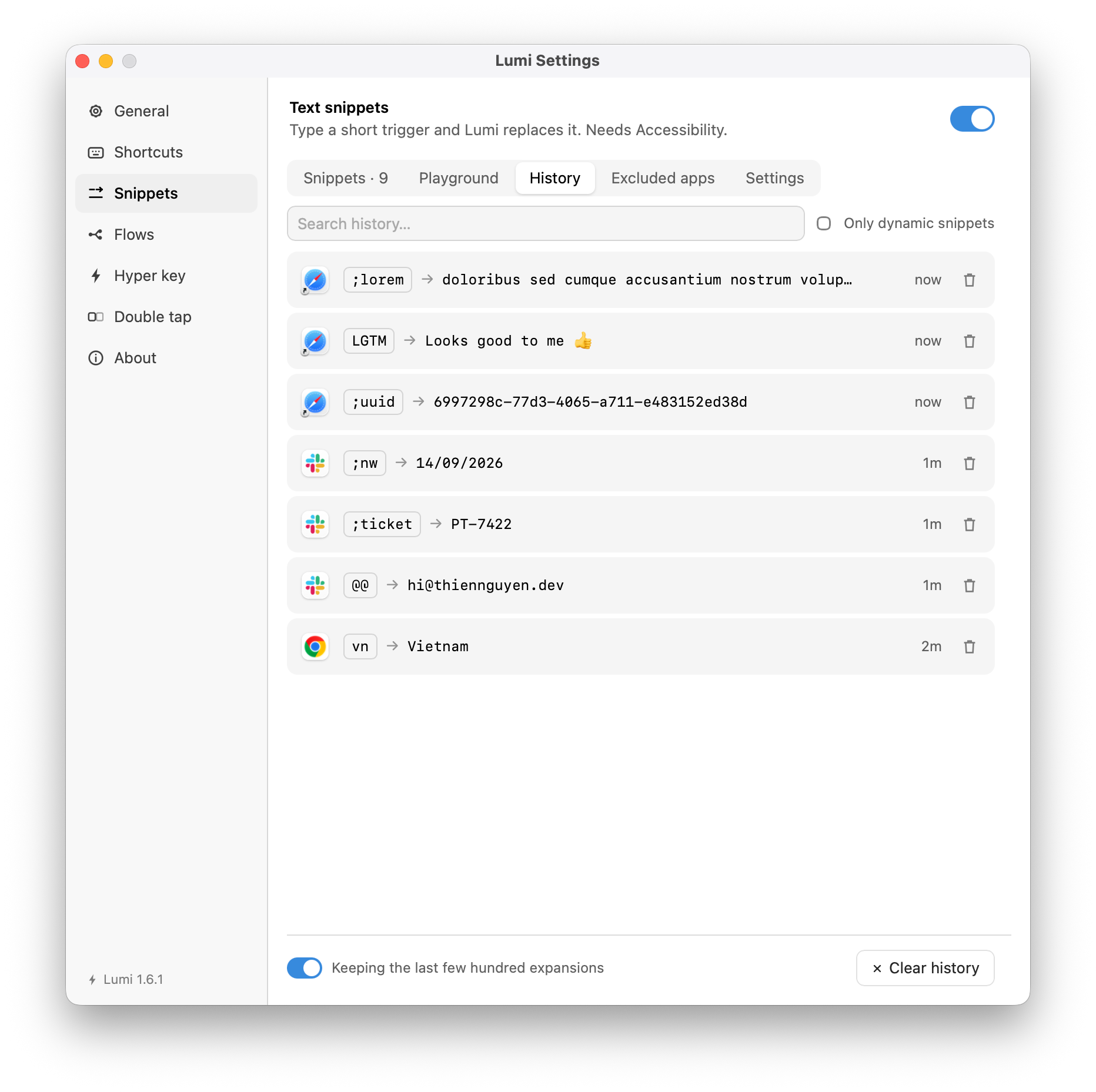
The list is append-only — renaming a trigger or deleting the snippet leaves the
old rows exactly as they were. It is stored in plain text, which matters if you
generate passwords with {{$randomPassword}}.
The switch at the foot of the tab stops the recording, the bin on a row forgets
one, and Clear history empties it.
Two things are never written to History, whatever the switch says:
- Anything typed in the Playground, or that expands elsewhere in Lumi's own window.
- Any expansion that used
{{$clipboardText}}, or a script that calledlumi.clipboardText()— the row is still there, saying which trigger fired where and when, but not what came out. Lumi cannot tell a copied paragraph from a copied one-time code, and a script that so much as read the clipboard is sealed whether or not any of it reached the answer.
Importing a pack
Export… and Import… at the foot of the list move snippets between Macs, or hand a set to somebody else.
A pack that contains a script shows you each
one, whole, before you import it, with the lumi. names it appears to read —
so finding out that a snippet reads your clipboard does not mean reading a
hundred lines first. That listing is a reading of the source and not a proof:
what a script can actually reach is fixed by Lumi, not by what the review
spotted.
There is no capability list, because there is nothing to list — a snippet
reaches the snippet variables and nothing else, and a text replacement holding
{{$clipboardText}} is a replacement like any other, which the review does not
call out. Read a pack before you import it, the way you would any other text
somebody sent you.
A replacement cannot reach the selection by either spelling:
{{$selectedText}} does not stand in a snippet and lumi.selectedText is not
bound, because a snippet fires mid-word when nothing is selected.