Action Flows
A graph of nodes that runs from a trigger to an end, built by dragging.
A shortcut binding does exactly one thing. A flow is the answer to wanting four, in order, with a condition in the middle: a graph of nodes, wired together, built by dragging in a window of its own.
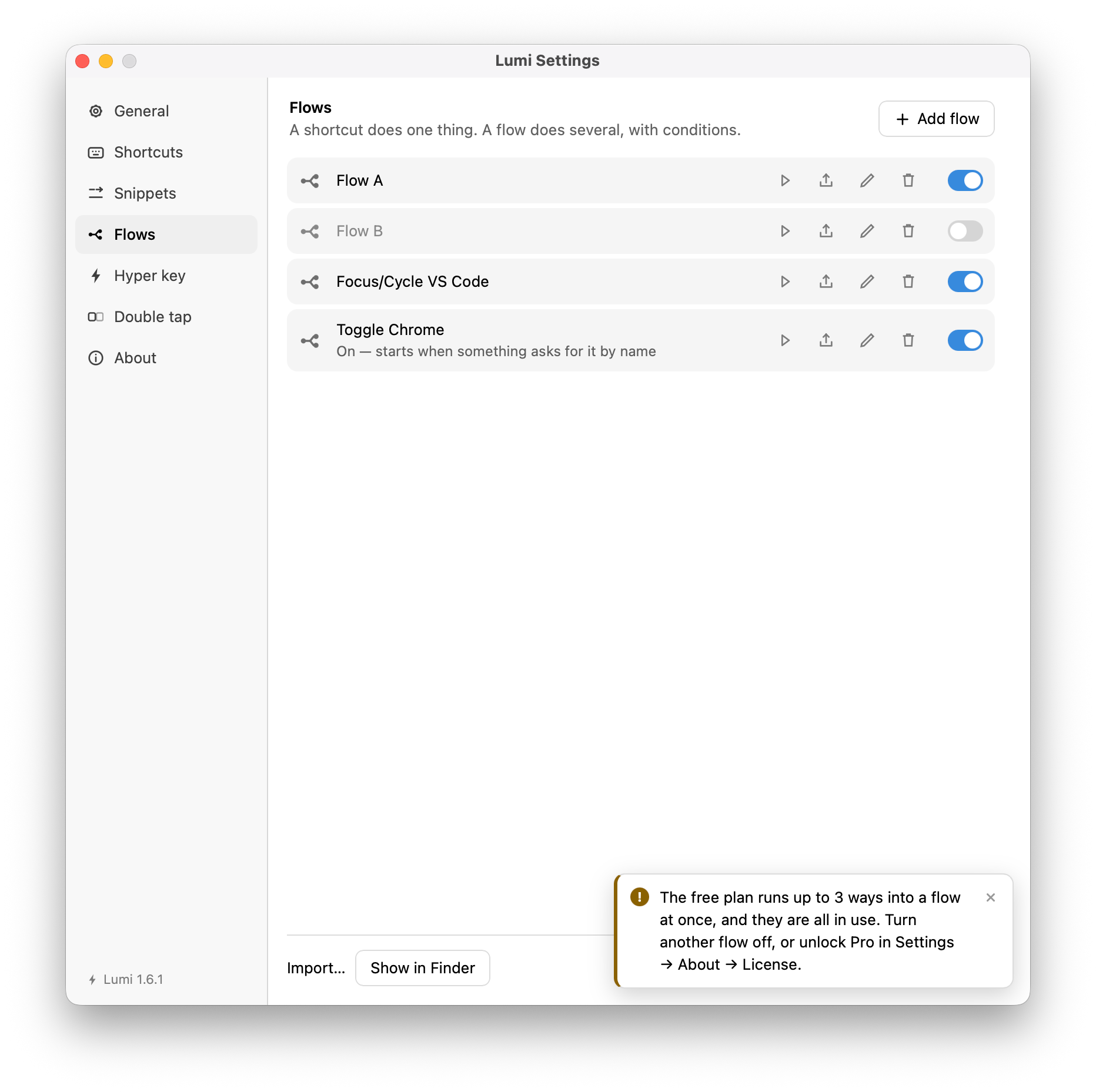
Open it from Flow Editor… in the tray, or bind a combination to it under General. The list of flows, and the switch that arms each one, is under Flows in Settings.
The one rule
The graph is data-flow, the way n8n's is. A node takes the items that reached it
and returns items on one or more output ports, and a port that comes back
empty ends that branch. If puts an item on one of its two ports and nothing
on the other, and everything downstream of the empty one is never reached.
There is no separate step or control token. That one rule is what makes If and
Switch — and, later, Filter — the same mechanism seen from different
angles. Edges are Pending, Delivered or Dead; a node whose incoming edges all
came back dead is skipped, and its outputs go dead too.
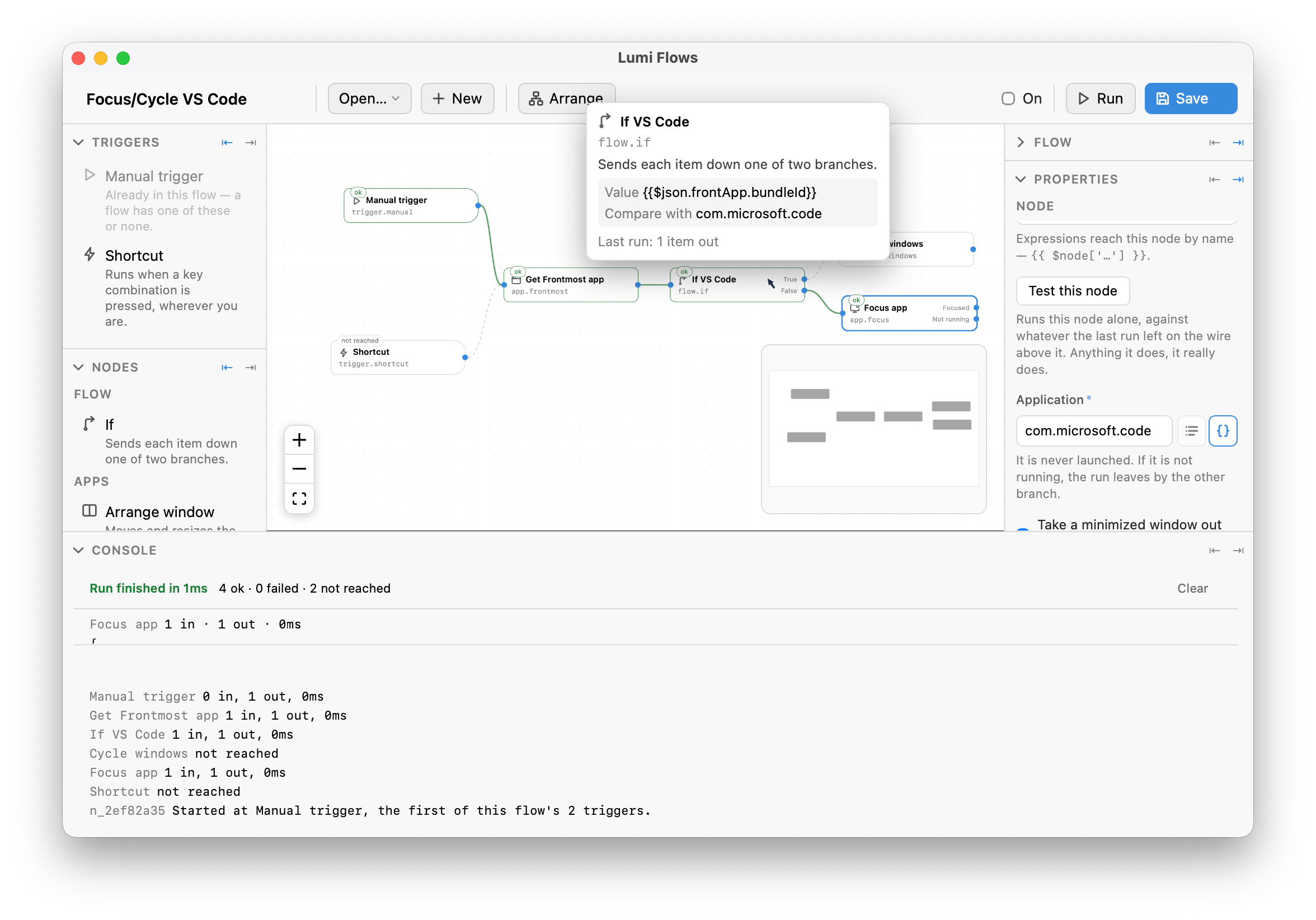
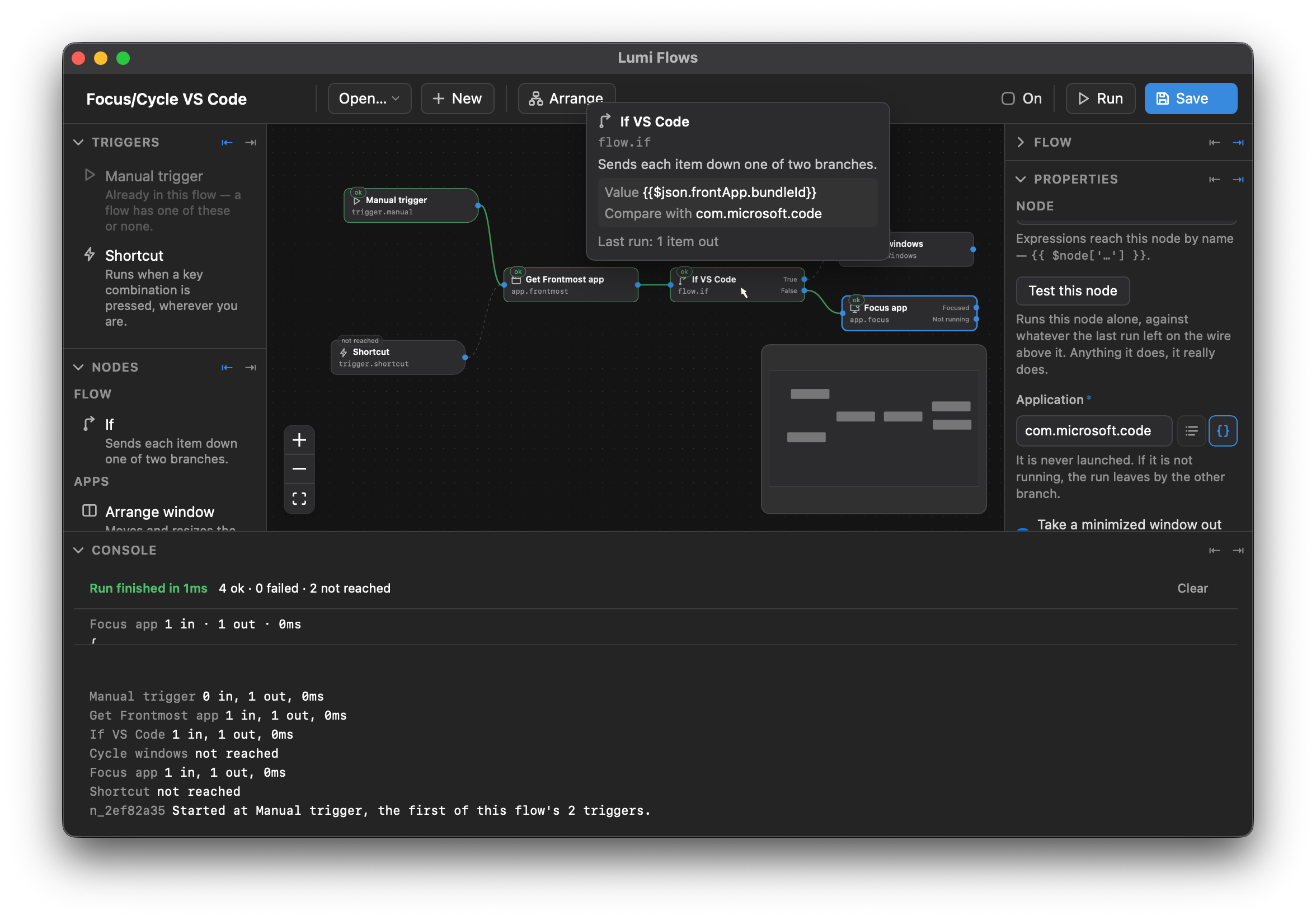
The canvas draws it after a run: a wire that carried items is solid, one that went dead is dashed, and a node nothing arrived at is badged not reached — which is a different answer from failed, and the Console counts the two separately.
Expressions
Node params can hold {{ … }}, resolved fresh on every run against:
| Expression | Reads |
|---|---|
{{ $json.url }} | a field on the item currently on the wire |
{{ $node["Get selected text"].json.selection.text }} | another node's output |
{{ $trigger.frontApp }} | what was true when the trigger fired |
{{$uuid}}, {{$date("%d.%m.%Y")}} | the snippet variables, arguments included |
A param that can be picked from a list carries a two-way toggle: the list icon
picks a value, and the {} icon takes typed text — which is where an expression
goes.
All the snippet variables work except three: {{$clipboardText}},
{{$selectedText}} and {{$frontApp}} are not offered and do not resolve. A
flow reads the clipboard through the Read clipboard node, the selection
through Get selected text and the app in front through Frontmost app —
each declares the capabilities the import review lists, and a variable doing the
same thing quietly would go around all three.
The node catalogue
A node is one file plus one line in a list — the editor reads its spec and draws the inspector, so there is no per-node UI.
Triggers
| Node | Runs when |
|---|---|
| Manual trigger | something asks for this flow by name — the tray, a shortcut bound elsewhere, another flow. At most one per flow. |
| Shortcut | a key combination is pressed, wherever you are. A flow may hold several, each starting the run at itself. |
Apps
| Node | Does |
|---|---|
| Open app | Launches an application, or brings it forward if it is running. |
| Focus app | Switches to an application that is already running — it is never launched. Ports: Focused and Not running. |
| Toggle app | Hides it when it is in front, shows it when it is not. Has a Not running port. |
| Quit app | Asks an application to quit the way ⌘Q does, so it can still offer to save. Leave the application empty for the one in front. Ports: Quit and Not running. |
| Force quit app | Ends it at once without asking — unsaved work is lost. Same fields and ports as Quit app. |
| Arrange window | Moves and resizes the frontmost window to a slot on its display. |
| Full screen | Sends the frontmost window to a Space of its own, or brings it back. Toggle, Enter or Leave — the last two do nothing when the window is already that way, so they are safe against a desk you have not checked. Read {{ $json.fullScreen.changed }} to see whether it did anything. |
| Minimize window | Puts the frontmost window in the Dock. No fields — one window, one direction. Focus app is the way back out. |
| Cycle windows | Switches to the next or previous window of one application. |
| Show desktop | Slides every window aside to bare the wallpaper, or puts them back. Toggle, Show the desktop or Bring windows back — the last two arrive where they say whatever is on screen, so they are safe in a flow that did not check first. The one node here that needs no Accessibility permission. |
| Frontmost app | Describes the application in front at this moment. |
Input
| Node | Does |
|---|---|
| Send keystroke | Presses a key combination into the frontmost application. |
| Type text | Types text at the caret, without touching the clipboard. |
| Media control | Play/pause, next or previous track, volume, or mute. |
| Caps Lock | Locks capitals on or off, or flips them. Needs no Accessibility permission — it drives the keyboard's own lock state rather than the event tap. |
| Switch space | Moves to the Space on the left or the right, sliding or instantly. |
Cursor
| Node | Does |
|---|---|
| Cursor ripple | Draws a ring expanding out of the mouse pointer. |
| Cursor spotlight | Dims the display except for a circle around the pointer. |
| Cursor halo | Leaves a translucent circle under the pointer. Runs again to remove it. |
| Move cursor | Moves the pointer to a window or a display. |
Data
| Node | Does |
|---|---|
| Set | Adds or replaces fields on every item passing through. |
| Read clipboard | Takes what was copied — text, HTML, rich text, files or an image — off the pasteboard. |
| Write clipboard | Puts text, HTML, rich text, files or an image on the pasteboard. |
| Get selected text | Takes what you have highlighted in whatever is in front. |
| Read text on screen | Reads the text in the window in front, an area you drag, a window you click or the whole display — even text you cannot select. Out on Text, or No text when there is none; all of it at once or one item per line. Needs Screen Recording. |
| Run script | Runs JavaScript over the items on the wire and returns what comes back. |
Control, System, Notify, Network
| Node | Does |
|---|---|
| If | Sends each item down one of two branches. |
| Switch | Sends each item down the first of four branches whose case matches, or out Other. |
| Do nothing | Passes items straight through. A junction, a deliberate dead end, or a placeholder for a step not written yet. |
| Note | A note on the canvas, sized and coloured by you. Explains the flow; never runs. |
| System command | Lock, screen saver, switch user, sleep, log out, restart, shut down. |
| Open System Settings | Opens System Settings at one pane. |
| Show alert | Draws a line of text over whatever is frontmost. |
| HTTP Request | Calls an HTTP API or webhook and puts the answer on the wire. |
Triggers, and starting a flow by name
A flow can have more than one trigger, and they are not spares — each claims its own combination and starts the run at itself, so one flow can hold a quick path and a long one without being split in two.
The Manual trigger is where everything that asks for the flow by name arrives: the tray, the Run button, another flow, and a Run flow shortcut bound in the Shortcuts pane. That last one is the only way to give a key to a flow whose entry point is the Manual trigger, and the picker offers it only for flows that have one. The binding stores the flow's id and nothing else, so renaming the flow cannot break it.
A Run flow shortcut whose flow can no longer answer — the Manual trigger
deleted, the flow switched off, the flow deleted — does not go quiet. It draws
the reason on screen and pins it to the row.
Editing, and Run
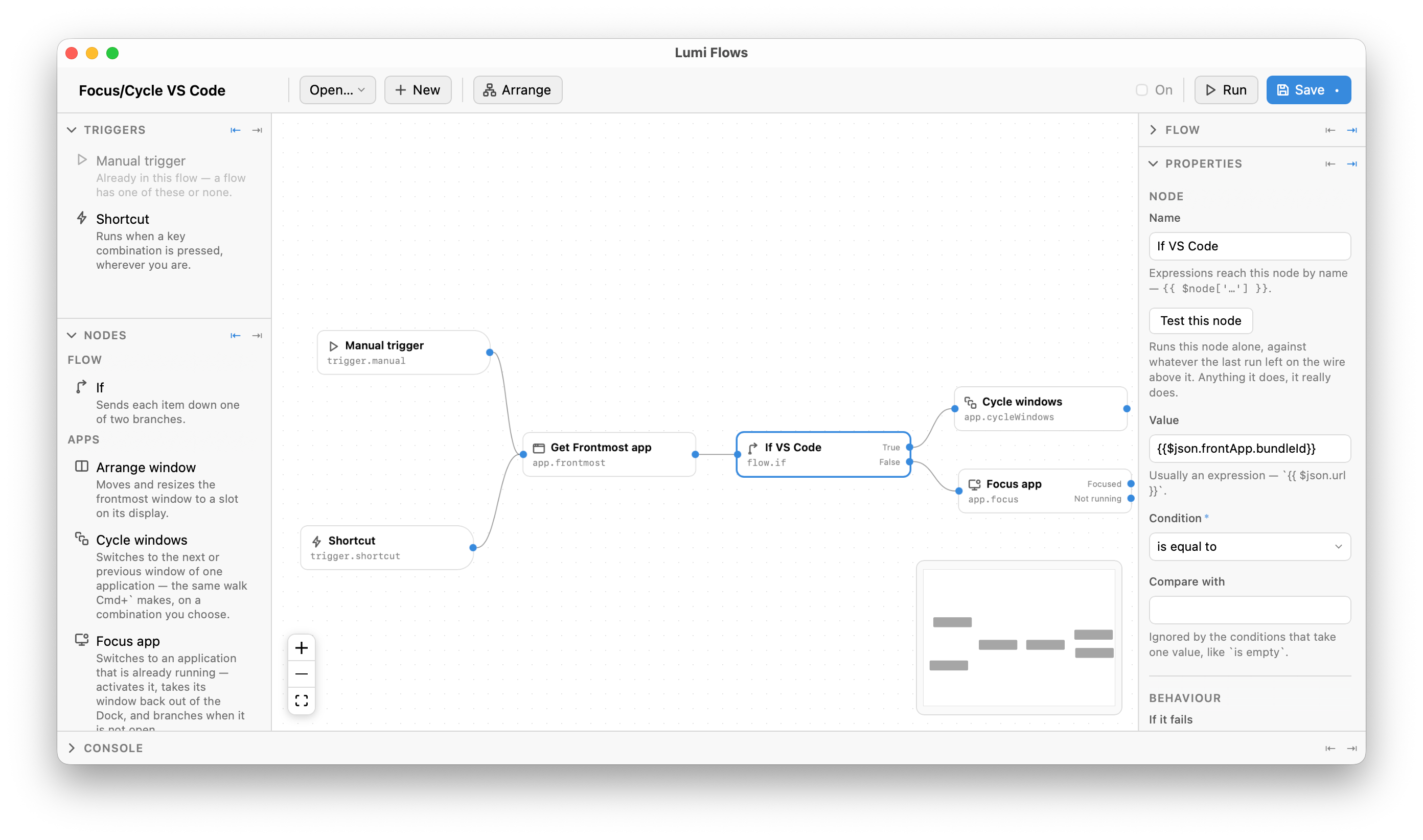
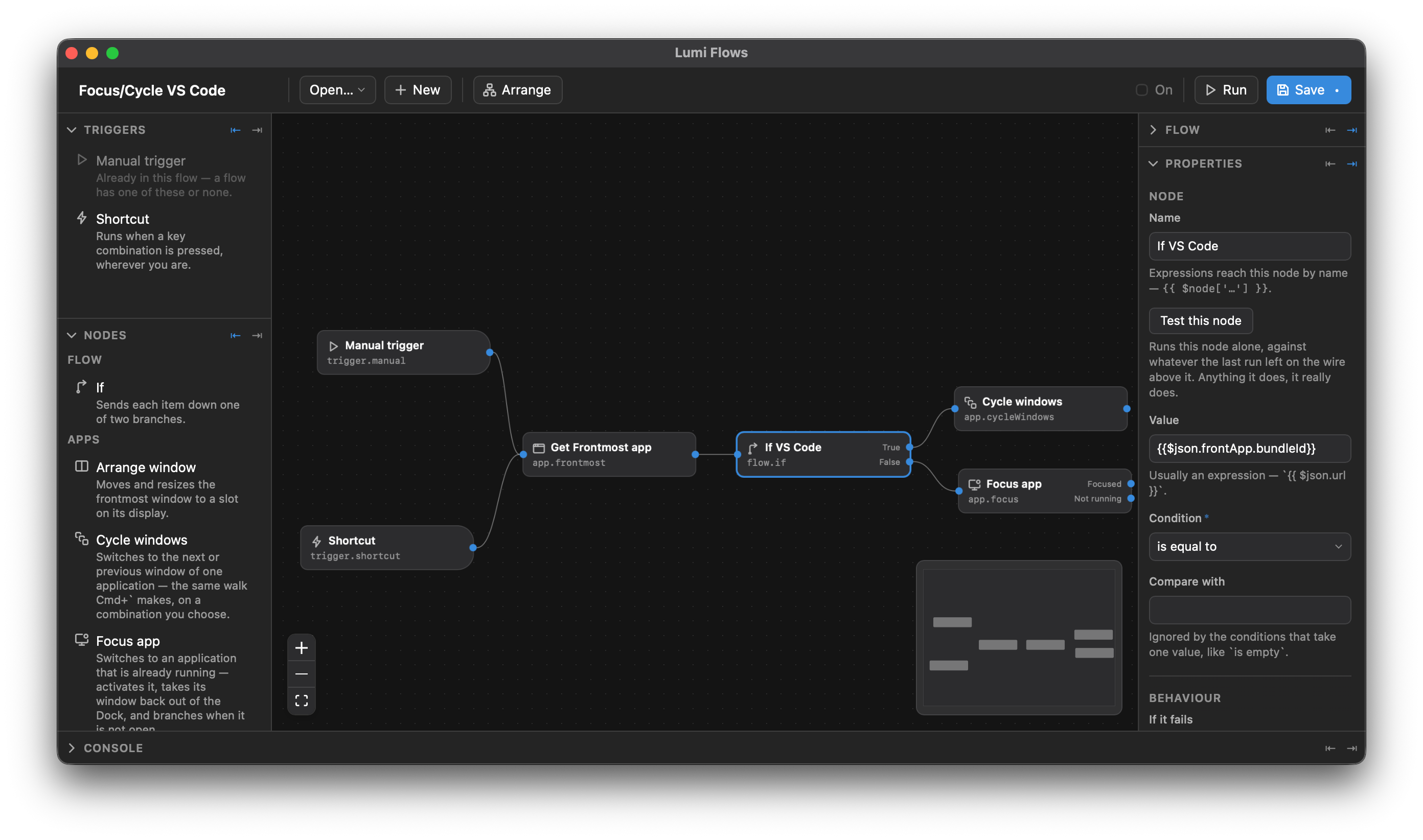
The toolbar carries the flow's name, Open… and + New, an Arrange that lays the graph out for you — notes stay where you put them, since a note sits behind the nodes it is about — the On switch that arms this flow, Run, and Save. Run executes the flow from the first trigger in the file, and is never subject to the Pro cap — a flow can always be built and tested. A run's variables live exactly one run and are gone when it ends.
Console, at the foot of the window, is where a run reports itself: how long
it took and N ok · N failed · N not reached, then a line per node with the
items in, the items out and the time each took, and which trigger the run
started at.
Test this node, in the inspector, runs the selected node on its own against whatever the last run left on the wire above it. It is not a dry run: anything the node does, it really does.
A node's Name is also its address — {{ $node['…'] }} in an expression
reaches it by that name, so renaming a node breaks the expressions pointing at
it. Under the params, If it fails decides what a failure costs:
| Choice | What happens |
|---|---|
| Stop the run | Nothing after this node runs. |
| Carry on | The next node gets the input unchanged. |
| Down the error branch | The run leaves by this node's error port. |
Closing the editor with unsaved changes puts up Save / Don't save / Cancel. A clean editor closes straight away.
Flows are files
Each flow is a file of its own rather than a section of your settings, so exporting is a copy and importing is a drop — and a flow that will not parse costs you that flow rather than every shortcut you own.
Four version numbers keep an older Lumi honest about a file from a newer one,
and they are deliberately separate: the file format (schemaVersion), the node
catalogue (requires.sdk), each node's own params (typeVersion), and the
author's semver (version). The requires block is worked out from the nodes
on save, never written by hand.
| Opening a flow where… | What happens |
|---|---|
| everything is understood | it opens; nodes older than this build are brought forward in memory, nothing written back until you save |
| a node or a setting is from the future | it opens read-only and cannot be armed — a flow half of whose steps were silently skipped would do something nobody wrote |
| the file format or the SDK major is newer | refused, naming the release that would open it |
Whatever this build does not understand — an unknown node type, field or value — survives being opened and saved. That is the one promise the format makes.
How many can be armed
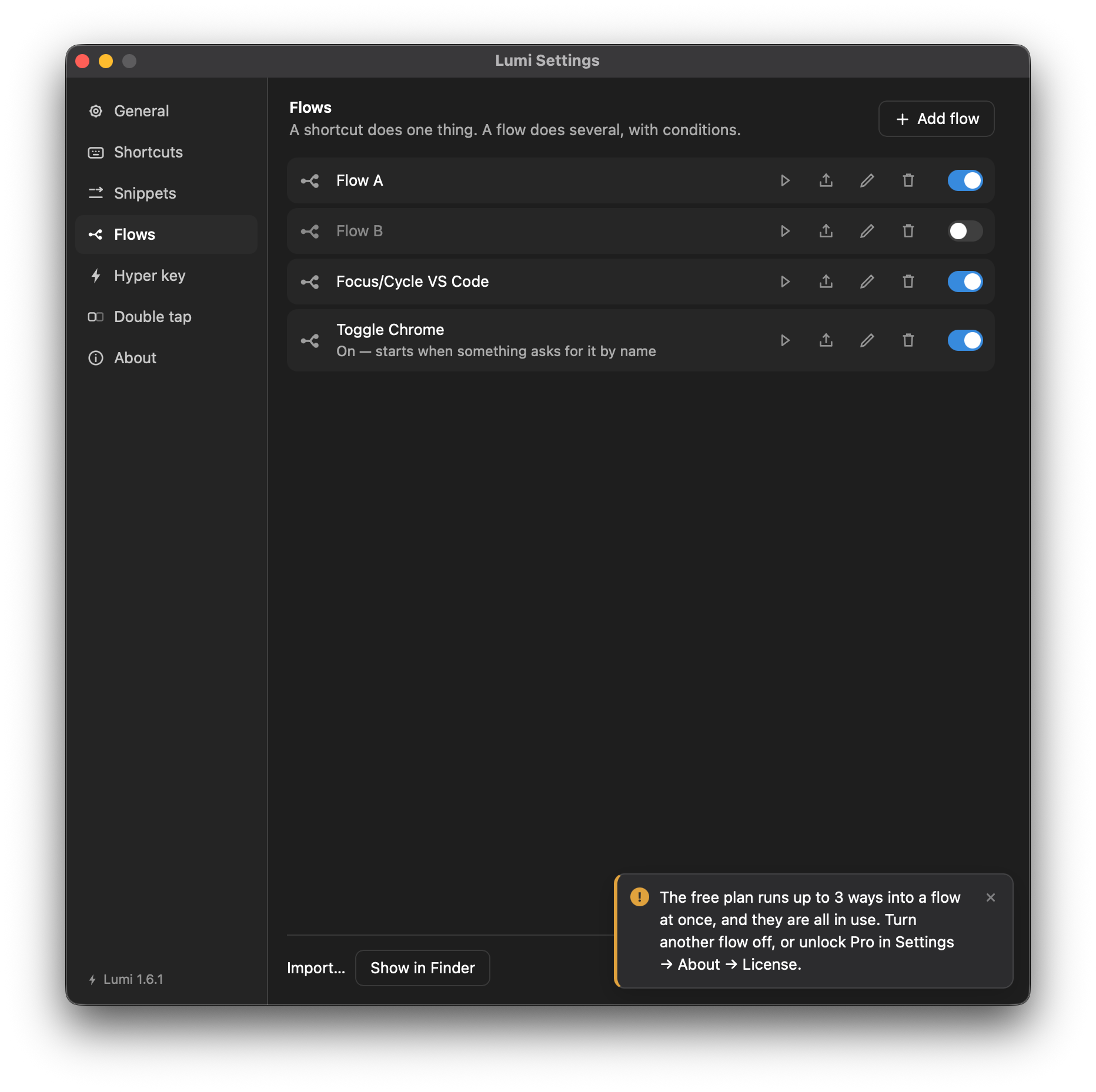
The free copy runs three armed ways into a flow at once; Pro runs all of them. Switching on a fourth is refused, in amber rather than red, with the sentence "The free plan runs up to 3 ways into a flow at once, and they are all in use. Turn another flow off, or unlock Pro in Settings → About → License." A flow that is switched off costs nothing, so the cap never stops you writing or keeping flows — only running more than three at a time. The Flows pane shows which are live.